
BEFORE YOU START
What you need
- Presence Sync is enabled and the account can edit profiles and synchronisation. This monitoring does not require a Teams SBC.
- The EasyUC Entra app has User.Read.All and Presence.Read.All with admin consent. Cisco’s native integration requires its own separate Microsoft consent.
- Provide the Webex organisation ID and OAuth access with People read permissions and telephony_config_read. Changing the organisation switch also needs telephony_config_write and the appropriate admin role.
Prepare the native integration
Where to work: Teams Admin Center / Webex Control Hub
Allow Cisco Call in the Teams Admin Center and deploy it to the intended users. Grant Cisco’s required Microsoft consent and configure Microsoft Teams integration in Control Hub. Unified CM telephony also requires Presence status sync in Connected UC. Check Cisco’s current prerequisites for the deployed platforms. An organisation switch alone cannot replace this setup or the required user identities.
Bring Microsoft and Webex into one profile
Where to work: Presence Sync → Add presence profile → Cisco Webex
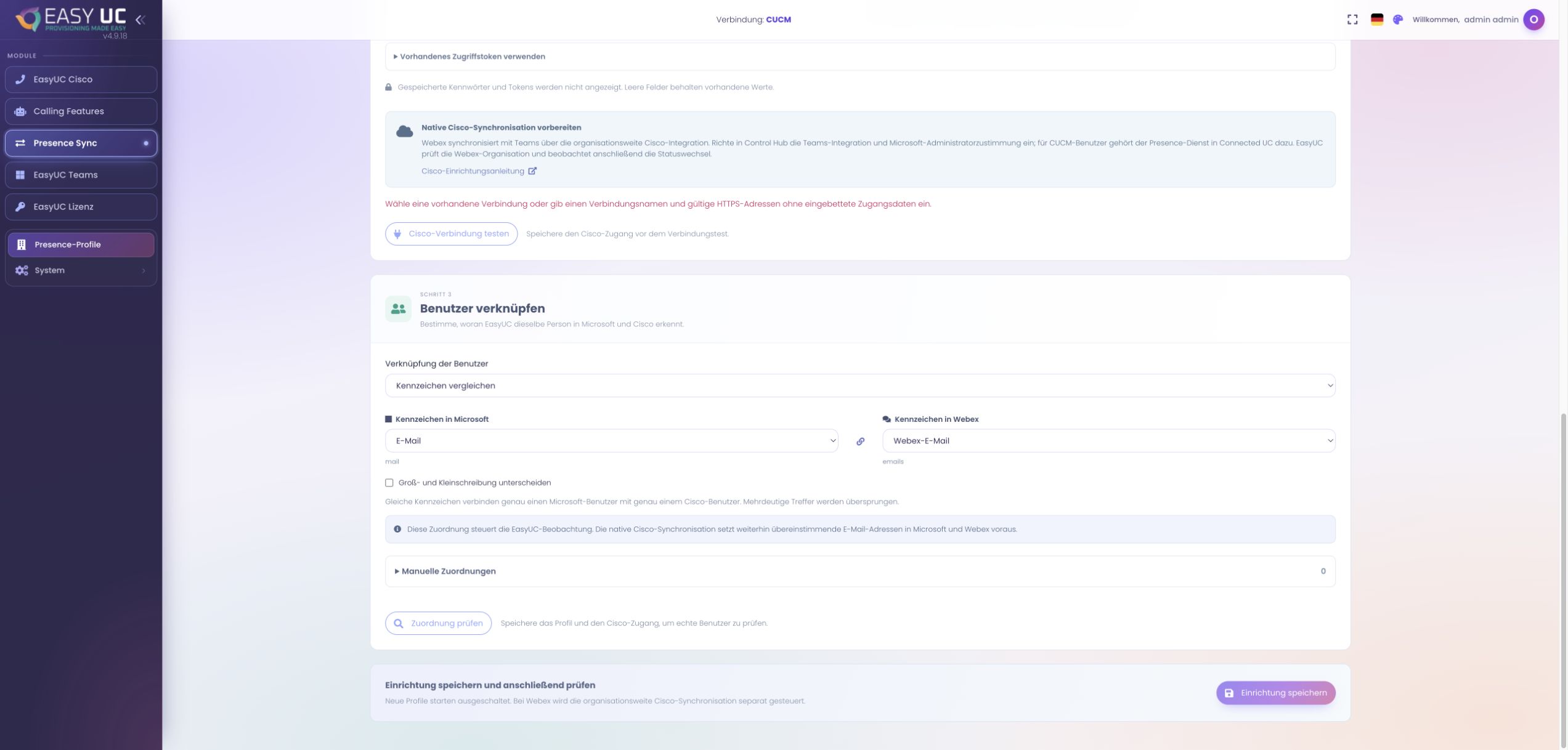
Create a profile with a name, Microsoft tenant ID, client ID and secret. Explicitly choose Cisco Webex in the Cisco section. Webex presence remains cloud-based even with Unified CM calling, so the Webex connection is appropriate here. The original capture shows an unsaved form with Webex selected and the native-integration explanation; it does not show saved credentials or an active synchronisation.
Save and test Webex access
Where to work: Profile → Configure Cisco access directly
Name the Cisco connection and enter organisation ID, integration client ID, client secret and refresh token. Save and test the Cisco connection. The test checks access to the organisation’s user directory. An existing access token is an alternative mode, but it expires and needs renewal. OAuth configuration supports renewing access through a refresh token for ongoing operation.
Validate identities for monitoring
Where to work: Profile → Compare identifiers → Check mapping
For example, choose Microsoft email and Webex email, then check the mapping. Review unique matches, missing users and ambiguous results. This setting determines which identities EasyUC compares in its monitoring. Cisco’s native synchronisation still requires its supported matching email identities. A manual EasyUC mapping therefore cannot repair a mismatched native Cisco identity. Check at least two representative users in both directories.
Enable the organisation switch and monitoring separately
Where to work: Profile → Configuration → Cisco presence integration
Save the selected Cisco client while the main switch is off. Check the organisation-wide Cisco presence integration. If it should be enabled for the bound Webex organisation, use the explicitly labelled button; it affects the whole organisation. Then enable and save EasyUC monitoring. This separates the provider service that performs synchronisation from EasyUC’s polling and event history.
Observe status changes and interpret the results
Where to work: Profile → Presence Live
Open Presence Live and make controlled status changes with the test users. Compare the provider clients with the observed values. Use search, direction and result filters to inspect the relevant history. Observed means EasyUC read a source state; it does not confirm every Cisco transmission. Webex rate limits can make monitoring incomplete. Adjust the interval and inspect connector health when this occurs.
The result
Cisco’s native integration performs the presence synchronisation. EasyUC shows connector health, validated user mapping and observed statuses to support rollout and later troubleshooting.
Good to know
- Turning off EasyUC monitoring or the presence module does not disable native Cisco synchronisation. The separate organisation-wide Cisco switch controls that.
- The native integration and EasyUC monitoring have different permissions and responsibilities. Test both clients in the real deployment; a successful connection test alone does not confirm complete synchronisation.
Captures come from the EasyUC lab and demo environment. Captions identify setup and simulation states. If the interface is not yet available in your language, its original language is labelled. Available features depend on the version, permissions and configured connections.