
BEFORE YOU START
What you need
- The standalone Presence Sync module is enabled and ready in the Manager. The account can edit profiles and synchronisation; presence does not require a Teams SBC.
- The Entra application has User.Read.All, Presence.Read.All and Presence.ReadWrite.All with administrator consent. The appliance can reach Microsoft Graph and the required Cisco services.
- The CUCM call source requires active-call monitoring for all devices on the selected connection. Jabber directions additionally need a suitable IM and Presence connection and observer user.
Create a presence profile
Where to work: Presence Sync → Presence profiles → Add presence profile
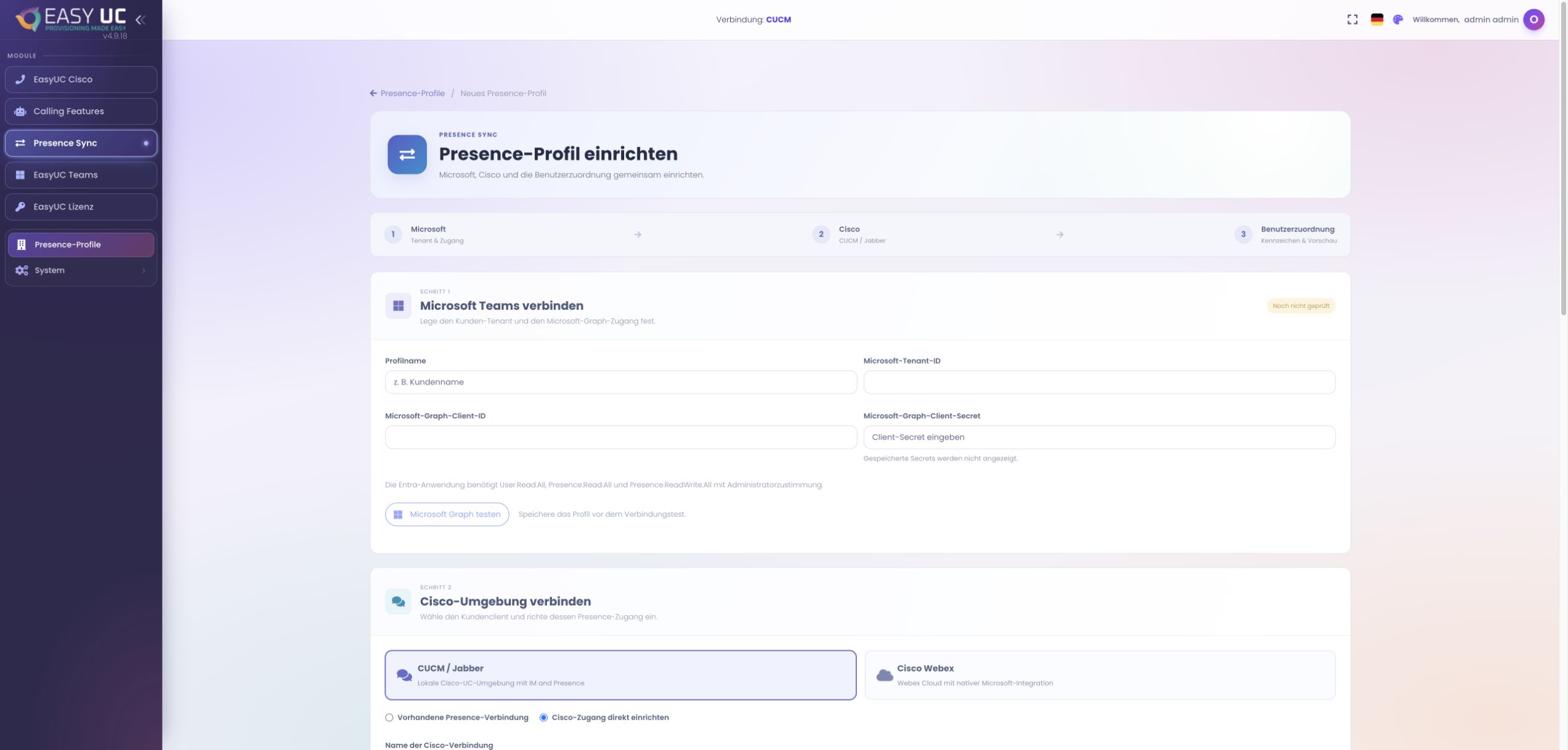
After enabling the module, open Presence Sync and start a new profile. Enter its name, Microsoft tenant ID, client ID and client secret. The profile groups Microsoft access with its Cisco connection. Use a clear name when managing several organisations. The original capture shows the empty setup form: no credentials were entered, no profile saved and no synchronisation enabled for the screenshot.
Test Cisco and Graph access
Where to work: Profile → Cisco access → CUCM / Jabber
Select CUCM / Jabber and choose an existing presence connection or configure Cisco access directly. Use the correct CUCM directory and, for Jabber, IM and Presence web-service details with application and observer users. Save before testing Microsoft Graph and the Cisco connection. These checks identify access problems before matching users. Private certificates require a trusted certificate chain for the connection.
Validate user matching
Where to work: Profile → User matching → Check mapping
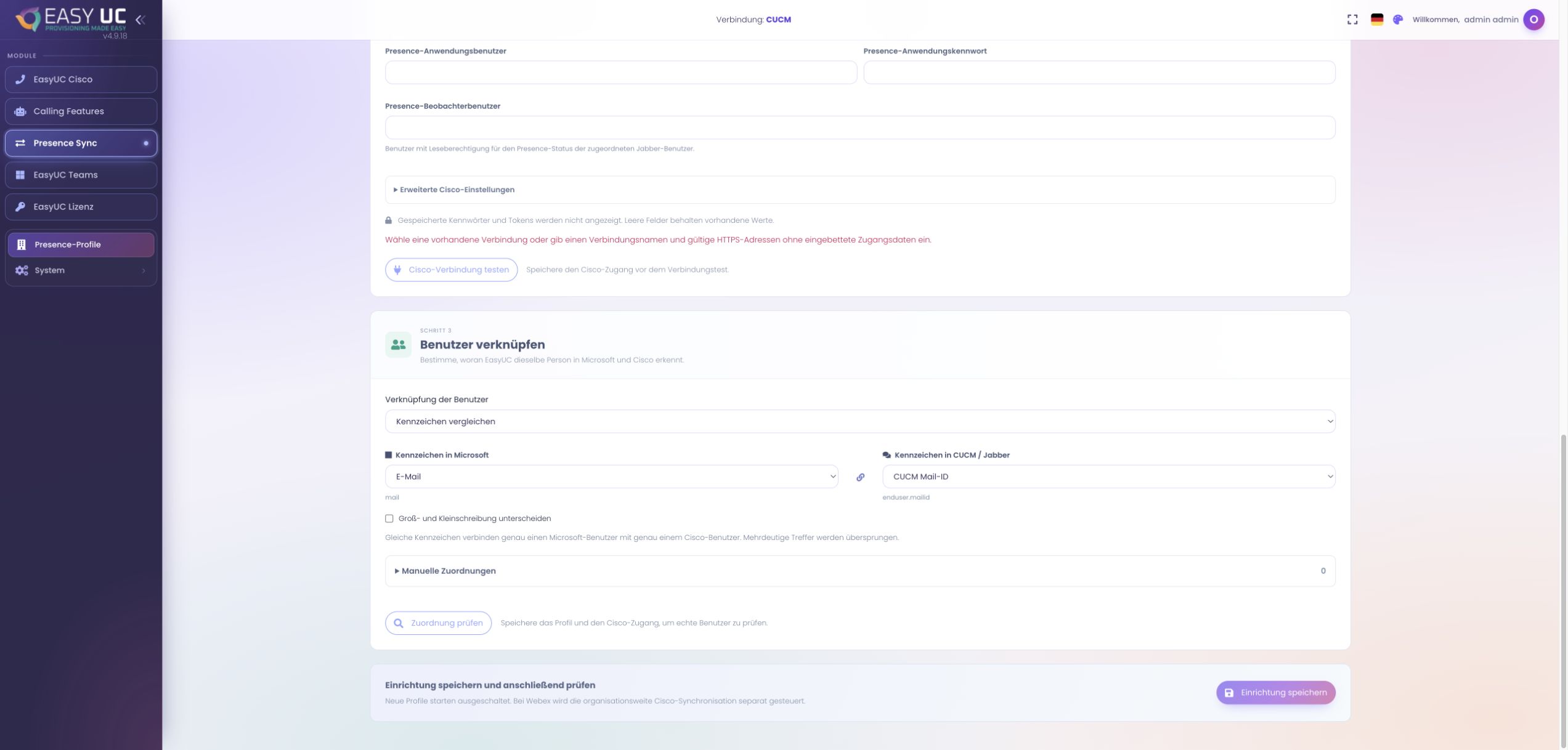
Choose Compare identifiers and supported fields with the same unique value on both sides, such as Microsoft email and CUCM Mail-ID. Check mapping distinguishes matched, missing and ambiguous users. Find at least two test users and resolve missing or duplicate values. Manual mappings using stable user IDs are available for exceptions. Save the validated configuration. This preview does not publish presence to either provider.
Start with one clear direction
Where to work: Profile → Configuration
Initially select only CUCM call status → Teams and choose the monitored CUCM connection. Keep the main switch off and save. Choose a suitable interval within the offered 5–60 seconds. Testing one direction makes acceptance easier: establish which Cisco call belongs to which Microsoft user and what EasyUC would publish before adding more sources.
Preview a connected call
Where to work: Configuration → Dry run
Place a call from a test user’s Cisco device and run Dry run while it is connected. Compare active calls, planned changes and conflicts with the expected user. Ringing alone is not proof of a conversation. If the user is missing, check identity matching and device monitoring. The dry run previews the operation without writing provider presence or EasyUC runtime events.
Enable and verify call completion
Where to work: Configuration → Enable presence sync → Presence Live
After a successful preview, enable the main switch and save. Open Presence Live and repeat call start and end. Check the visible status from a colleague’s Teams client and read direction, action, result and reason in the history. EasyUC releases its own source when the call ends. Add Jabber directions individually and test manual states such as Do not disturb instead of assuming every state is mirrored.
The result
EasyUC can publish confirmed connected CUCM calls to Teams for uniquely matched users. Presence Live shows actions and reasons for skipped updates; EasyUC releases its own presence source when the call ends.
Good to know
- DND, presenting and some busy combinations are deliberately skipped depending on direction. Manual user choices retain priority, so publishing an app source does not guarantee every visible status change.
- A source failure does not mean available. Check the connector and presence service when data is stale; the live view cannot reconstruct intermediate states missed between polls.
Captures come from the EasyUC lab and demo environment. Captions identify setup and simulation states. If the interface is not yet available in your language, its original language is labelled. Available features depend on the version, permissions and configured connections.