
BEFORE YOU START
What you need
- Enable the Teams module and editing rights for the SBC, tenants and scripts. Additional Calling Features capabilities need their corresponding modules and call routes.
- Provide a fixed public IP, suitable network rules, DNS-zone access and a domain verified in the Microsoft tenant for the SBC hostname.
- Provide Microsoft administration access and a working application or Teams PowerShell sign-in. Test users need Teams Phone, Enterprise Voice and the relevant voice routing policy.
Prepare the network and SBC
Where to work: Microsoft Teams → SBC setup
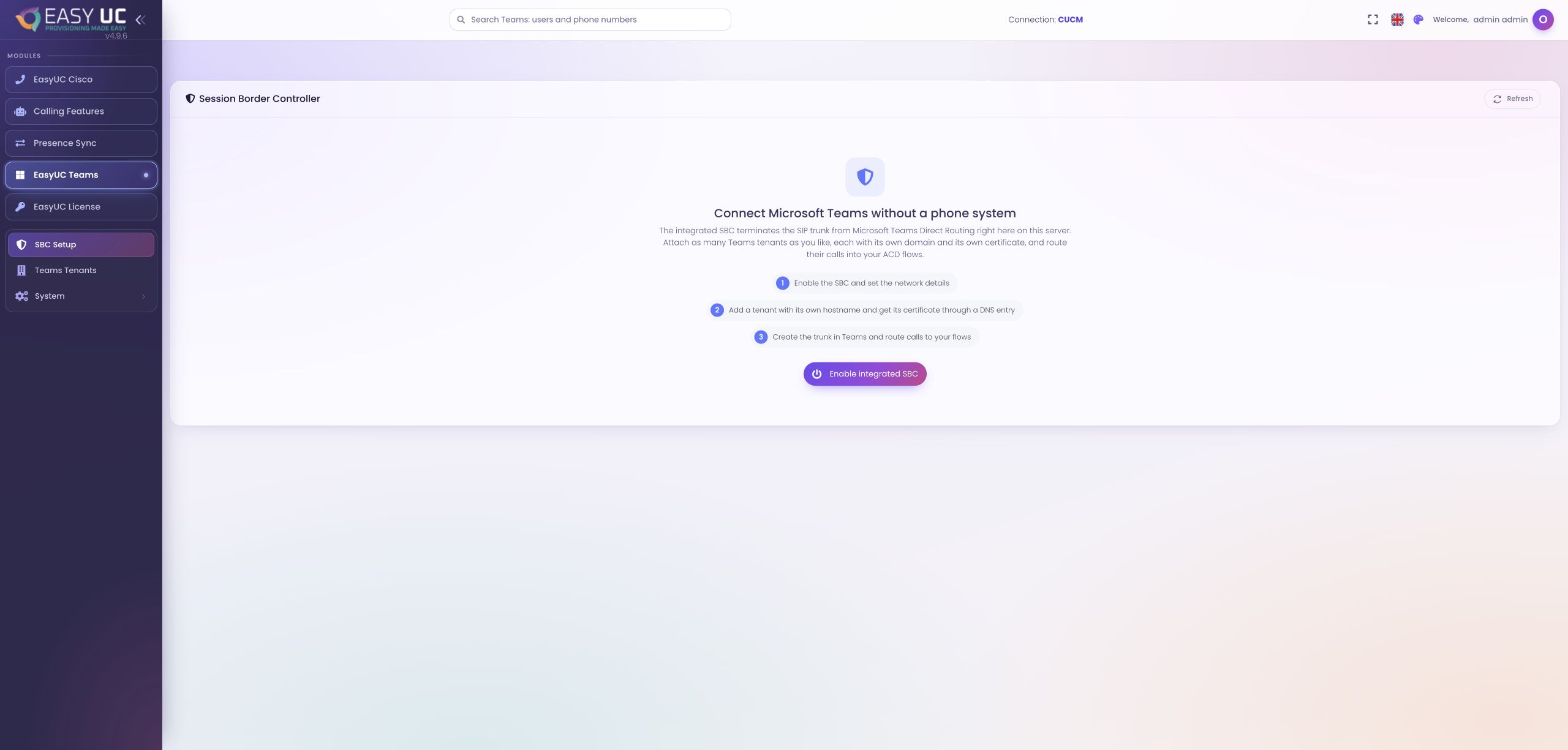
Define the public SBC hostname and DNS resolution. Then open SBC setup and start Enable integrated SBC. Enter the public IP, media IP and contact email for this installation. After saving, check the SBC service and last-seen information. The screenshot shows the actual entry screen before activation; it does not demonstrate a connected Teams tenant or a working call route.
Configure the tenant and certificate
Where to work: Teams tenants → Add tenant → Settings
Create the tenant with its name, directory ID and dedicated SBC hostname. Request a certificate under Certificate for this hostname. Add the displayed TXT value to public DNS and run Check and issue now. The issued, valid certificate state confirms this part of setup. Check hostname and port carefully, particularly when several tenants share an EasyUC server.
Test Microsoft access
Where to work: Tenant → Settings → Microsoft Graph / Set up trunk in Teams
Enter the application registration prepared for this tenant, including client ID and secret. Test Graph credentials and check the PowerShell service and its sign-in or automatic application authentication. Directory access, PowerShell management and the eventual phone connection are separate checks. A successful Graph query therefore confirms neither voice routes nor audio for the first call.
Assign the service number to a script
Where to work: Calling Features → Create IVR → Reachable through MS Teams
Create the script or edit an existing application. Enable Reachable through MS Teams, select the tenant and Direct Routing, and enter the number dialled in Teams in international format. Save its name, greeting and flow. If a menu should lead to a queue, configure that handover as well. The voice route delivers the call to the script; the script controls what happens next.
Preview the routing changes
Where to work: Tenant → Settings → Set up trunk in Teams
Check Scripts through this trunk and choose What would happen. The preview lists covered numbers and proposed steps, including created or changed objects. Decide whether to extend the global policy or allow only selected users. Run Set up trunk now and inspect each result. Without global access, assign the displayed EasyUC voice routing policy to the intended users in the Teams Admin Center.
Test a call and reconcile later changes
Where to work: Tenant → Show calls / Call history / Voice routes
Allow Teams to apply the changes and check current SIP OPTIONS. Call the script number from an authorised test account: the call should appear and play the expected greeting. Then inspect call history and the SIP ladder. After later script edits, check route status; Reconcile now updates script-number routes. Gateway or global-policy changes require the broader route-update operation.
The result
An authorised Teams user reaches the intended EasyUC flow through its script number. Service state, SIP OPTIONS and call history help distinguish connection readiness from a successful test call.
Good to know
- An active connection does not replace testing audio, menu choices and destination delivery. The SBC accepts the configured script numbers from Teams.
- Operator Connect has separate ingress paths and prerequisites. This walkthrough covers Direct Routing and does not imply arbitrary connections between Microsoft telephony methods.
Captures come from the EasyUC lab and demo environment. Captions identify setup and simulation states. If the interface is not yet available in your language, its original language is labelled. Available features depend on the version, permissions and configured connections.