
BEFORE YOU START
What you need
- Phone control is enabled on the CUCM connection with its configured control user, and your role permits remote operation.
- The phone is registered, reachable and supported. Consent mode also requires the phone’s callback path to EasyUC.
Check the connection’s control settings
Where to work: Administration → CUCM Connections → Actions → Phone Control
Verify that control is enabled for the correct connection and the control user is configured. If consent is required, check its timeout and callback address. Resolve permissions, registration and reachability before attempting operation.
Identify the affected phone
Where to work: Cisco → Devices → Remote Control
Search by device name, description or number and match the result to the support case. Unavailable devices show a reason. Select the actual reachable phone, rather than a profile or an unregistered alternative.
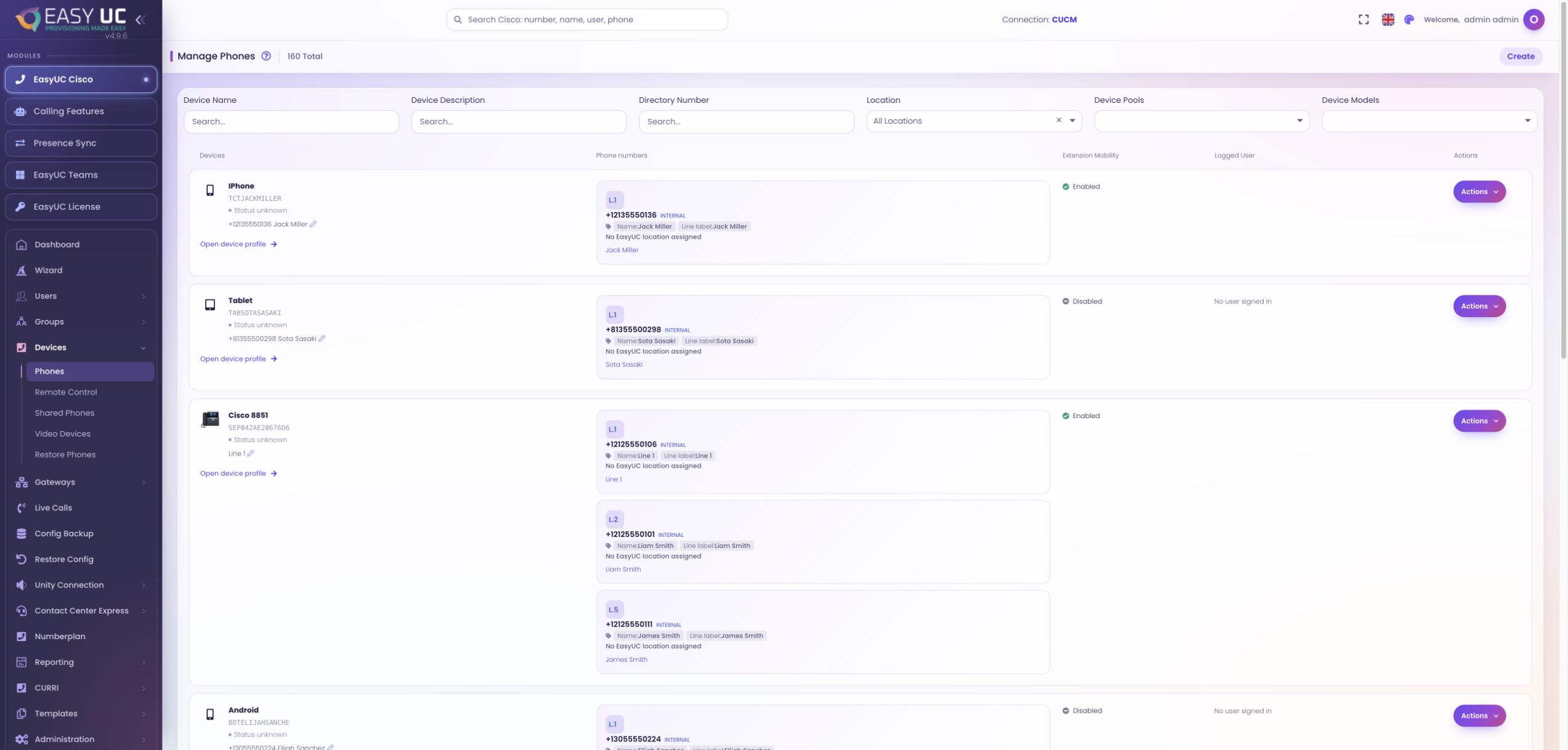
Connect and wait for consent
Where to work: Remote Control → Phone tile → Connect
EasyUC prepares a control session. In consent mode, choose Connect and wait for the phone user’s decision; rejection or expiry prevents operation. Without consent mode, selection can prepare the session automatically, so opening control is more than an inventory lookup.
Inspect the actual display
Where to work: Phone tile or opened phone dialog
Open the phone and compare its display with the user’s report. Images refresh periodically rather than as continuous video. Inspect lines, menus and messages first, and check session status before treating a previous image as current.
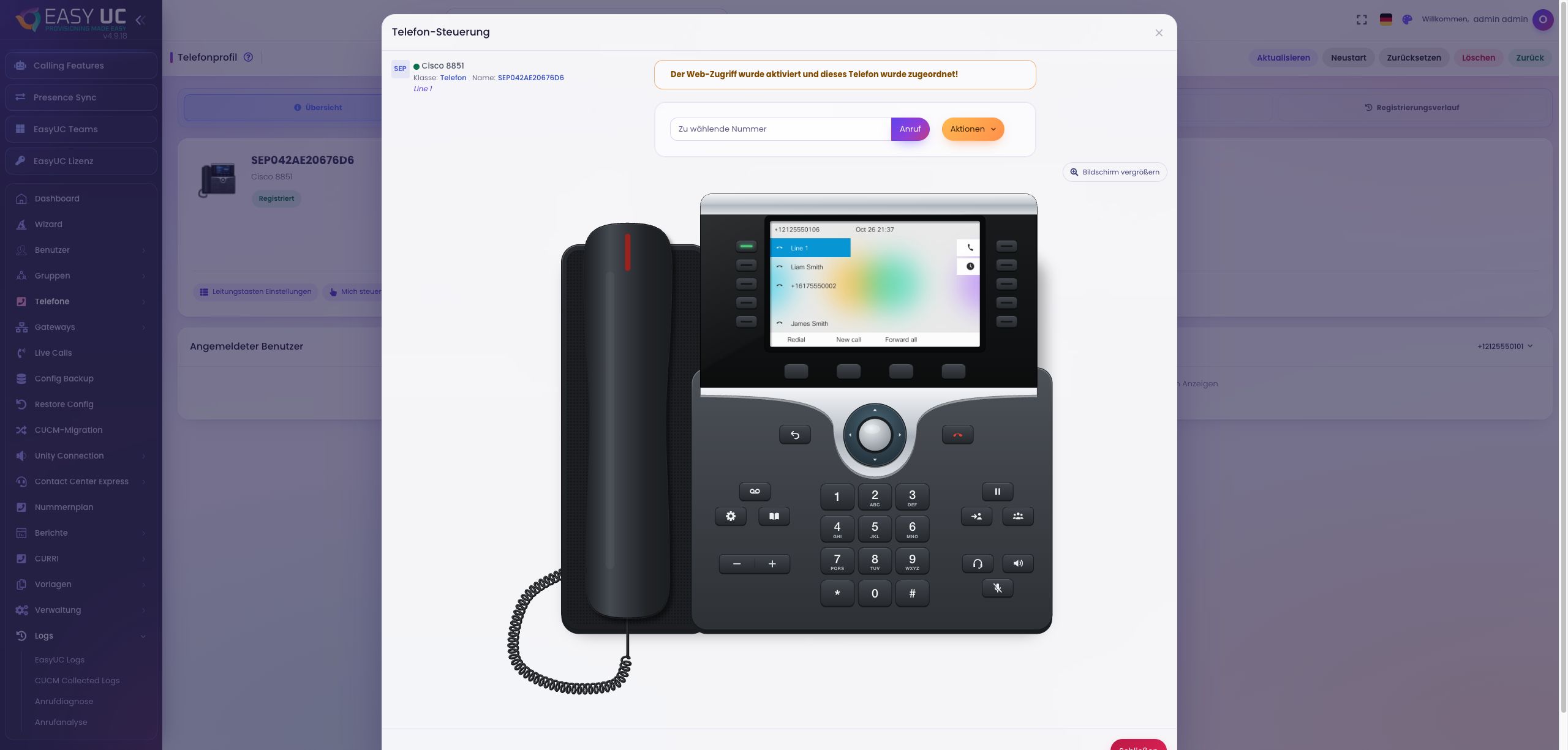
Reproduce an agreed interaction
Where to work: Phone dialog → Display and keys
Use supported controls for the agreed test and inspect the refreshed display after each action. These commands operate the real phone and may initiate calls. Actions are sent sequentially, allowing you to check the response before continuing.
Compare if needed and end the session
Where to work: Remote Control overview → Other devices / Close
The overview can display up to ten selected phones. Compare devices while keeping their users identifiable, then close the dialog, remove devices or leave the view to end sessions. Remembered selections are separate from active sessions. Record the support result.
The result
Inspect the screen and reproduce an agreed interaction to distinguish configuration, usability and connectivity problems.
Good to know
- Support depends on model, registration, configuration and reachability. The UI checks Cisco 7800, 8800, 9800 families and CSF, without guaranteeing every model or firmware.
- Remote control displays screens and sends actions; it is not call-audio recording or automatic repair.
Captures come from the EasyUC lab and demo environment. Captions identify setup and simulation states. If the interface is not yet available in your language, its original language is labelled. Available features depend on the version, permissions and configured connections.