
BEFORE YOU START
What you need
- User IDs already exist in the selected CUCM, for example after LDAP sync. Prepare locations, numbers and templates or Template 2.0.
- Wizard and step-specific permissions are required. Voicemail needs a configured Unity connection; other integrations need their own setup.
Prepare the CSV in the required format
Where to work: Wizard → Import CSV → Format instructions
Prepare a header and at most 50 user rows: User ID | Location Name | Package Name | Phone Type | Template Name | Mac Address. Use configuration names and twelve-character MAC addresses; the delimiter is the pipe character.
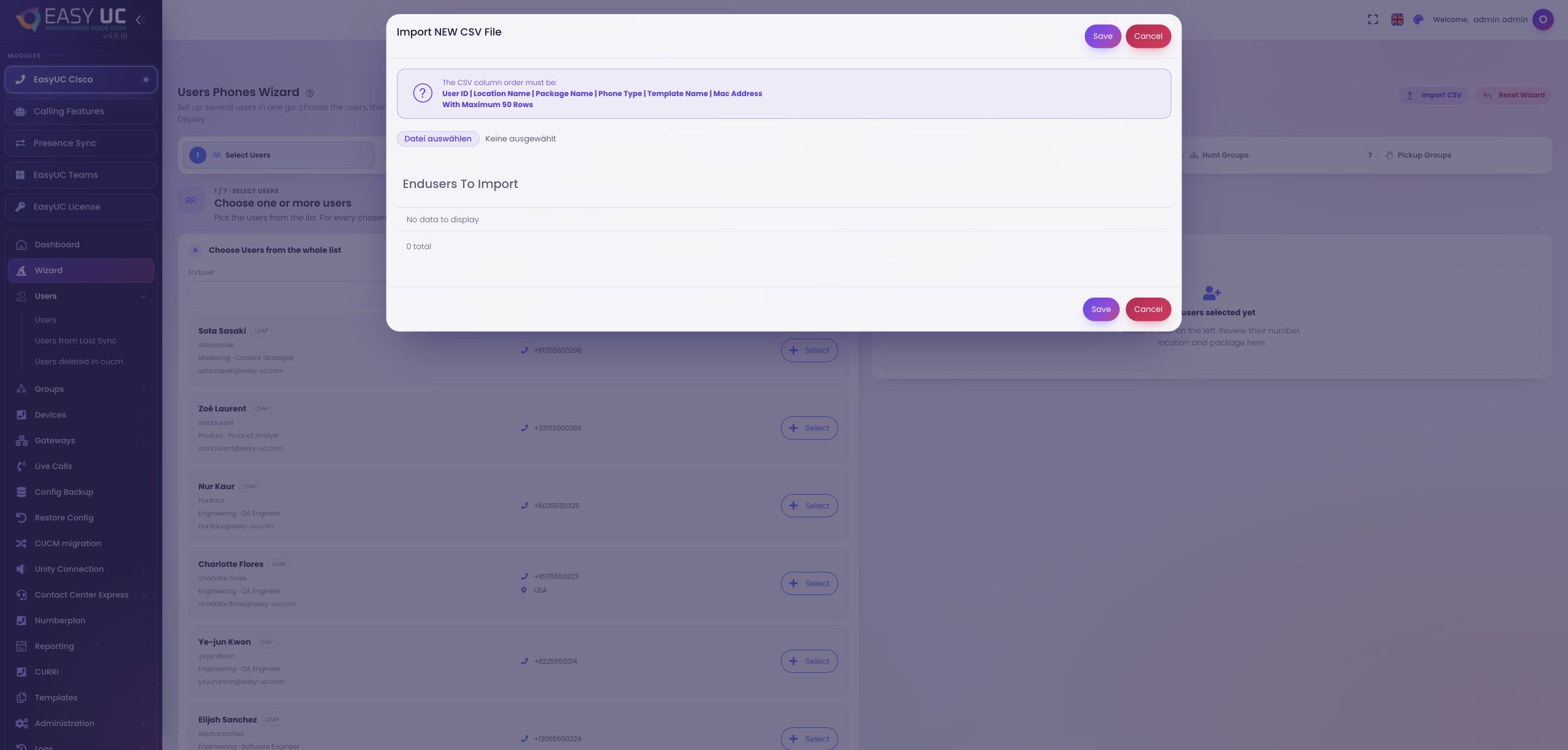
Load the file and match existing users
Where to work: Wizard → Import CSV → File selection
Load the CSV and wait for EasyUC to find the User IDs in the active CUCM. This step does not create identities. Check that expected users appear and correct missing or misspelled IDs in the directory or file.
Review each user’s number, location and model
Where to work: Import preview → User rows
Review number, location, package, model, template and MAC for each row. Template 2.0 uses location-defined models without a classic reference template. Correct incomplete rows: invalid entries are not added to the rollout selection.
Move the reviewed group into the wizard
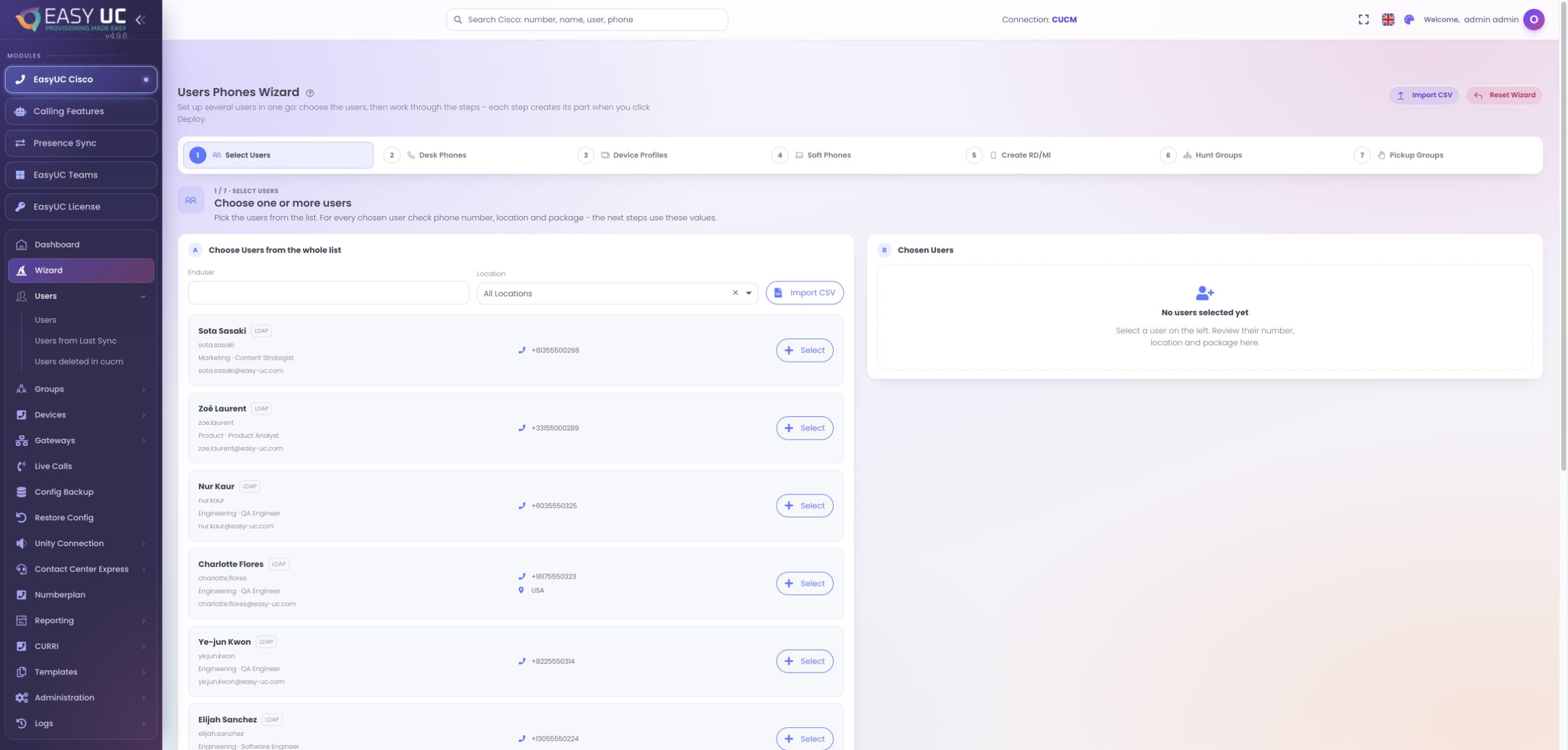
Where to work: Save import → Wizard → Select Users
Save the reviewed selection and check the group in Select Users. Subsequent steps use its numbers, locations and packages. Adjust the group before provisioning; existing users can also be selected directly or imported as a list of User IDs.
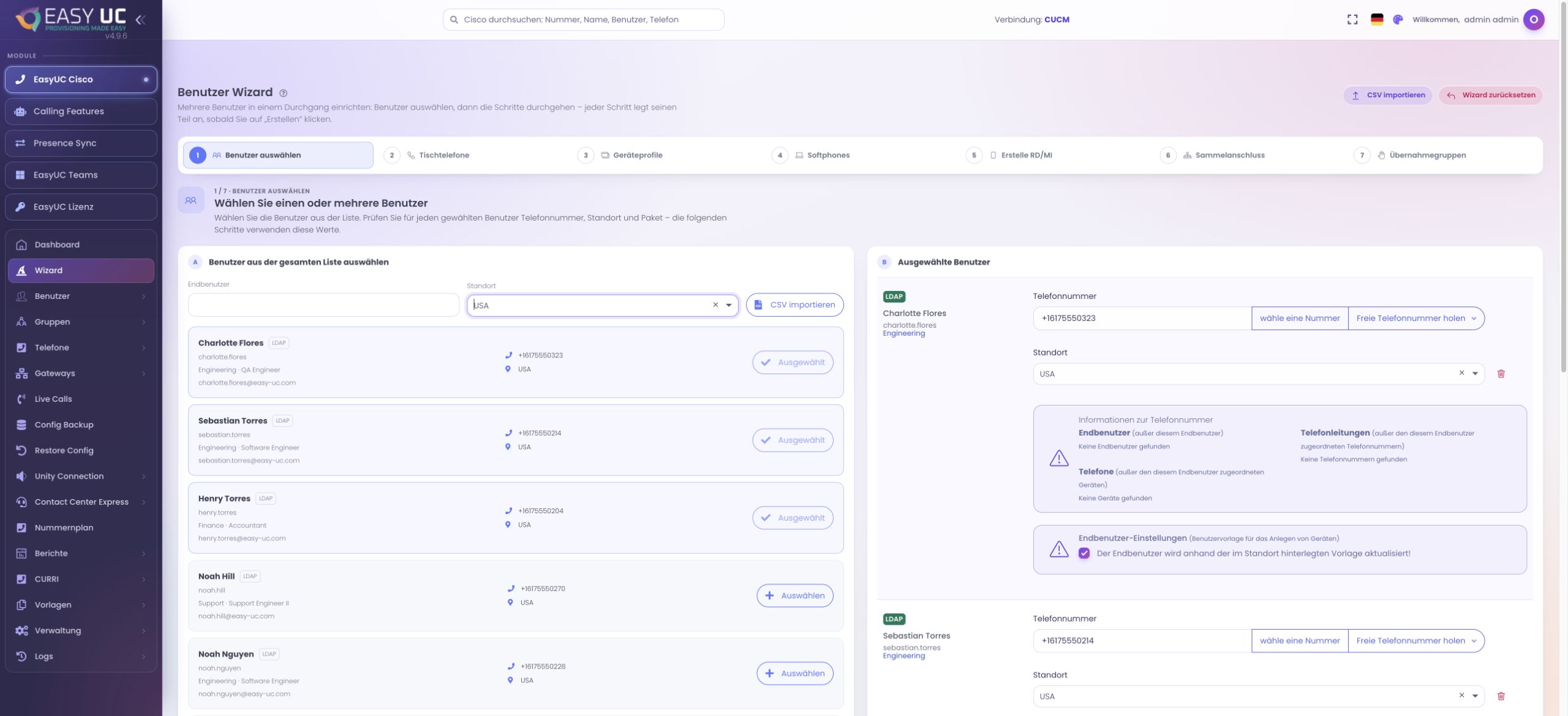
Deploy devices in the relevant steps
Where to work: Wizard → Desk Phones / Device Profiles / Soft Phones
Choose desk phones, Extension Mobility profiles or softphones. Verify model and MAC for phones, or select the needed clients. Review the plan and click Deploy for that step; navigating forward does not itself provision resources.
Add services and reconcile the results
Where to work: Wizard → Voicemail / Remote Destinations / Groups
Add enabled services such as voicemail, mobile reachability or hunt and pickup memberships, using each step’s selection and Deploy action. Compare the final results with the original user list so omitted or failed entries remain visible.
The result
A reviewed group receives selected phones, profiles, softphones and enabled services. The CSV prepares the selection; individual Deploy steps perform the provisioning.
Good to know
- The CSV wizard provisions existing users; it is not an unlimited import of new CUCM or AD accounts. Work in groups of at most 50 rows.
- Import and Deploy are separate. A loaded CSV does not confirm provisioned phones, registered devices or working mailboxes.
Captures come from the EasyUC lab and demo environment. Captions identify setup and simulation states. If the interface is not yet available in your language, its original language is labelled. Available features depend on the version, permissions and configured connections.