
BEFORE YOU START
What you need
- The ACD module is active. Setup requires agent and team editing rights; agents subsequently use their own active agent accounts.
- The call route and phone destination are configured and tested. Creating skills or an agent account alone does not establish working call delivery.
- Provide a team with an assigned directory and, when needed, a supervisor. The extended workspace functions described here require a suitable current EasyUC version.
Define the agent account and phone destination
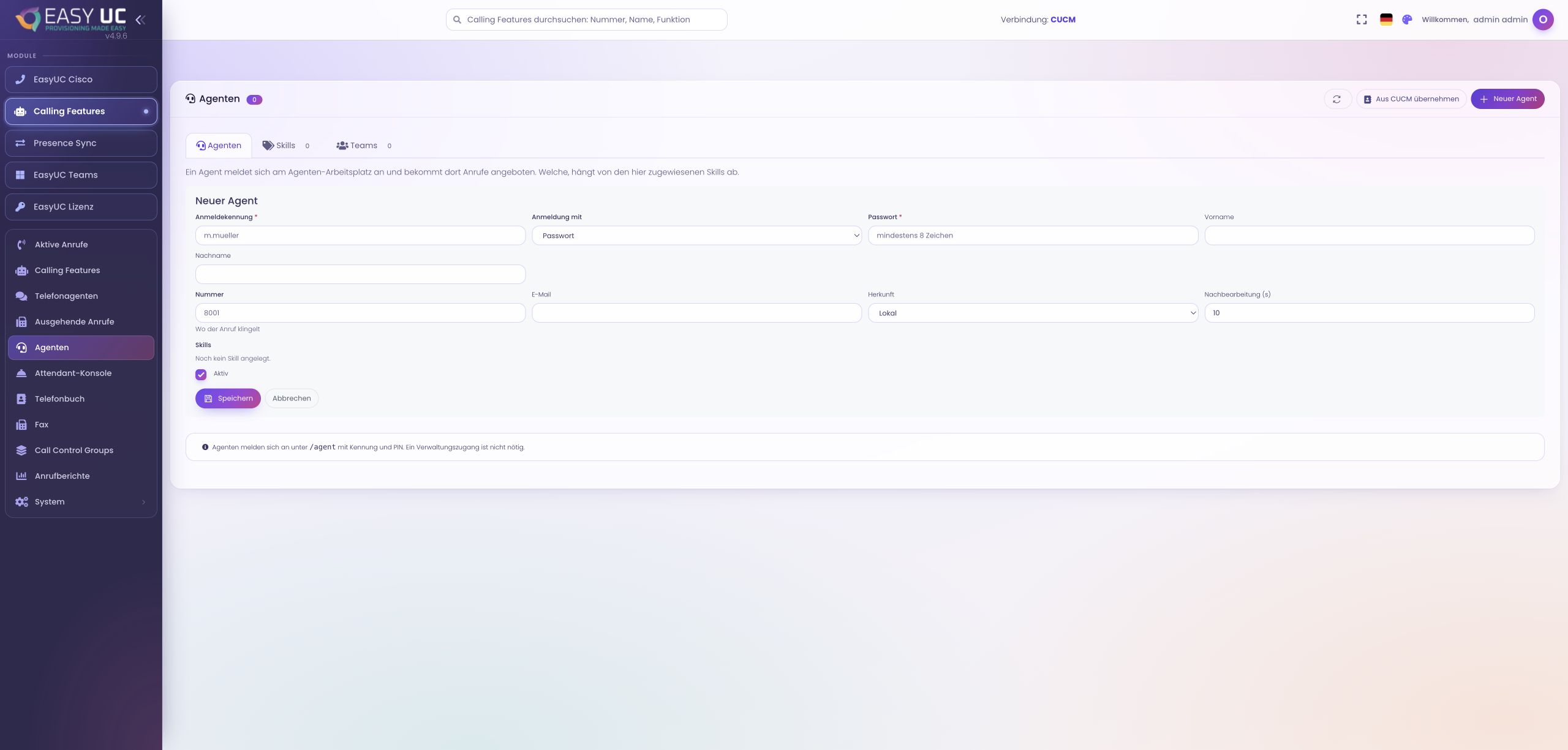
Where to work: Calling Features → Calls → Agents → New agent
Create a local agent or import one through the available CUCM connection. Verify the login identity, name and especially the phone number where conversations will take place. Select the intended authentication method and wrap-up time. Assign skills according to responsibility and save the active account. The original capture shows this setup form, not a signed-in agent or an already delivered call.
Assign the team, supervisor and contacts
Where to work: Agents → Teams → New team / Edit team
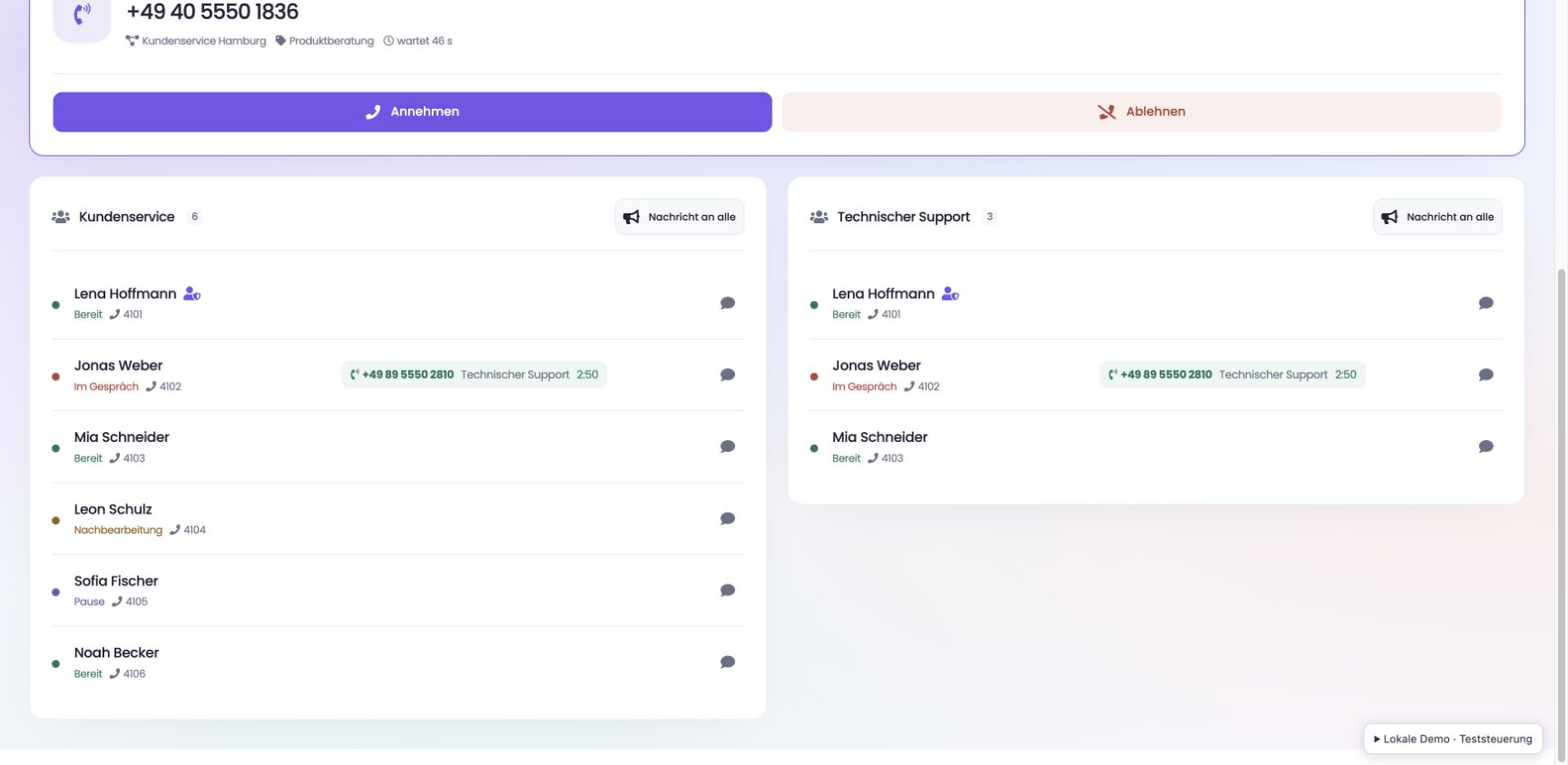
Create or edit the relevant team under Teams. Assign members and identify supervisors. Select the directories needed for that team’s work, then save and check membership. These assignments determine available contacts and restrict direct support messages to people sharing a team. They do not provide general access to other teams.
Sign in and set availability
Where to work: Agent workspace → /admin/agent
Open the agent workspace and sign in with the configured identity and PIN, local password or CUCM password. First check that the phone is reachable and expected team contacts are visible. Choose Ready when you can handle offers, and Pause for a break. EasyUC availability belongs to this workspace; it does not automatically sign you into a Microsoft call queue.
Handle an offer and use call context
Where to work: Agent workspace → Call offer / In a call
For a configured offer, read the caller, script, skill and waiting time where supplied. Accept the offer and handle the conversation on the phone. In a call retains available information such as number, flow, skill and elapsed duration. An active conversation prevents conflicting Ready or Pause changes. During initial testing, verify delivery at the device; an offer card alone does not confirm audio.
Agent workplace with a queue
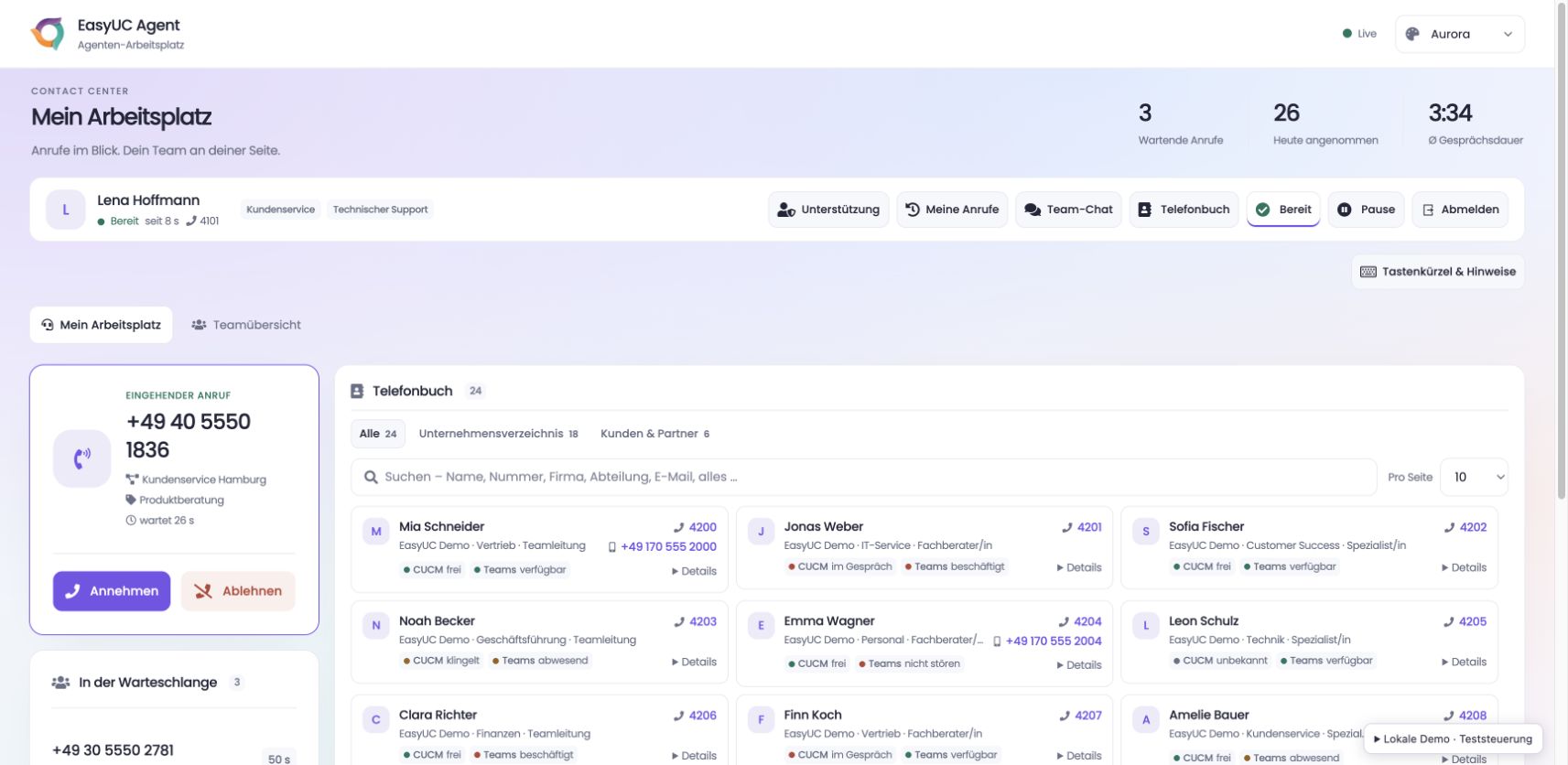
EasyUC demo · simulated calls. The original agent interface shows an incoming call, queued calls, daily metrics and a directory with CUCM and Teams status. Isolated local demo with sample data; original German interface.
Find contacts and request support
Where to work: Agent workspace → Directory / Support
Search the directory by name, number, company, department or email. Open Details for more context and distinguish CUCM line state from Teams presence. Unknown states remain unknown. For help, select a supervisor from your team under Support and send a targeted chat message. This is team communication, not listening in or call coaching. Phone-number links open the locally configured calling application.
Complete wrap-up and review personal offers
Where to work: Agent workspace → Wrap-up / My calls
Use wrap-up after the call. The display shows elapsed status time and remaining planned time; expiration does not automatically make you ready. Choose Finish wrap-up when your work is complete. My calls shows the latest 20 personal offers within seven days, including a current accepted conversation. Distinguish accepted, declined, unanswered and ended offers: a colleague may later have answered an offer you missed.
The result
The agent has a tested sign-in, relevant team contacts and a reachable phone destination. Call context, personal offer history and targeted supervisor messages support daily work.
Good to know
- Personal history is not a list of all team calls and does not initiate callbacks. Using configured skills requires a corresponding, actually configured delivery route.
- Conversations take place on the phone. Validate telephony and workspace together; a successful login alone does not confirm working call delivery.
Captures come from the EasyUC lab and demo environment. Captions identify setup and simulation states. If the interface is not yet available in your language, its original language is labelled. Available features depend on the version, permissions and configured connections.