
BEFORE YOU START
What you need
- An API account with the appropriate permissions and licences, and a reachable EasyUC server. Store credentials in the service desk’s protected integration account.
- The CUCM user already exists. Companies, API locations, clusters and provisioning defaults are mapped in Enduser Setup.
- The ServiceNow side implements the REST request, its own request identifier and webhook receiver. This example uses EasyUC’s general integration interfaces; it does not assume an installed ServiceNow connector.
Prepare API access
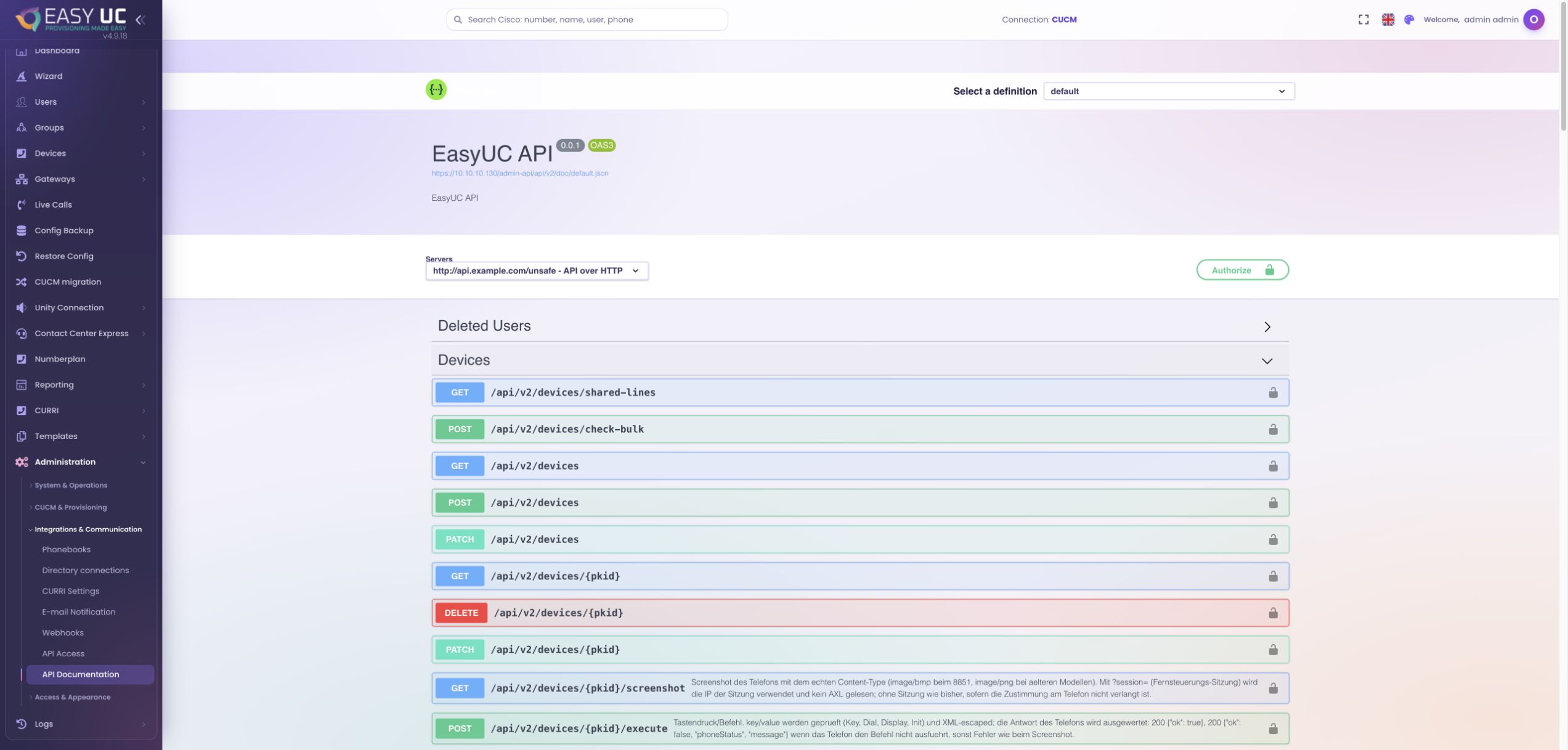
Where to work: Administration → Integrations & Communication → API Access / API Documentation
Start with a dedicated integration account so automated requests can be distinguished from interactive administrator activity. Then open the built-in API documentation. It describes the resources, input fields and responses available in your EasyUC version.
Authenticate through POST /public-api/auth using apiKey and apiSecret. The integration uses the returned JWT for subsequent requests. Check authentication and read permissions before submitting a real provisioning task. Surface a failed login as an integration error in the service desk.
Map requests to the correct environment
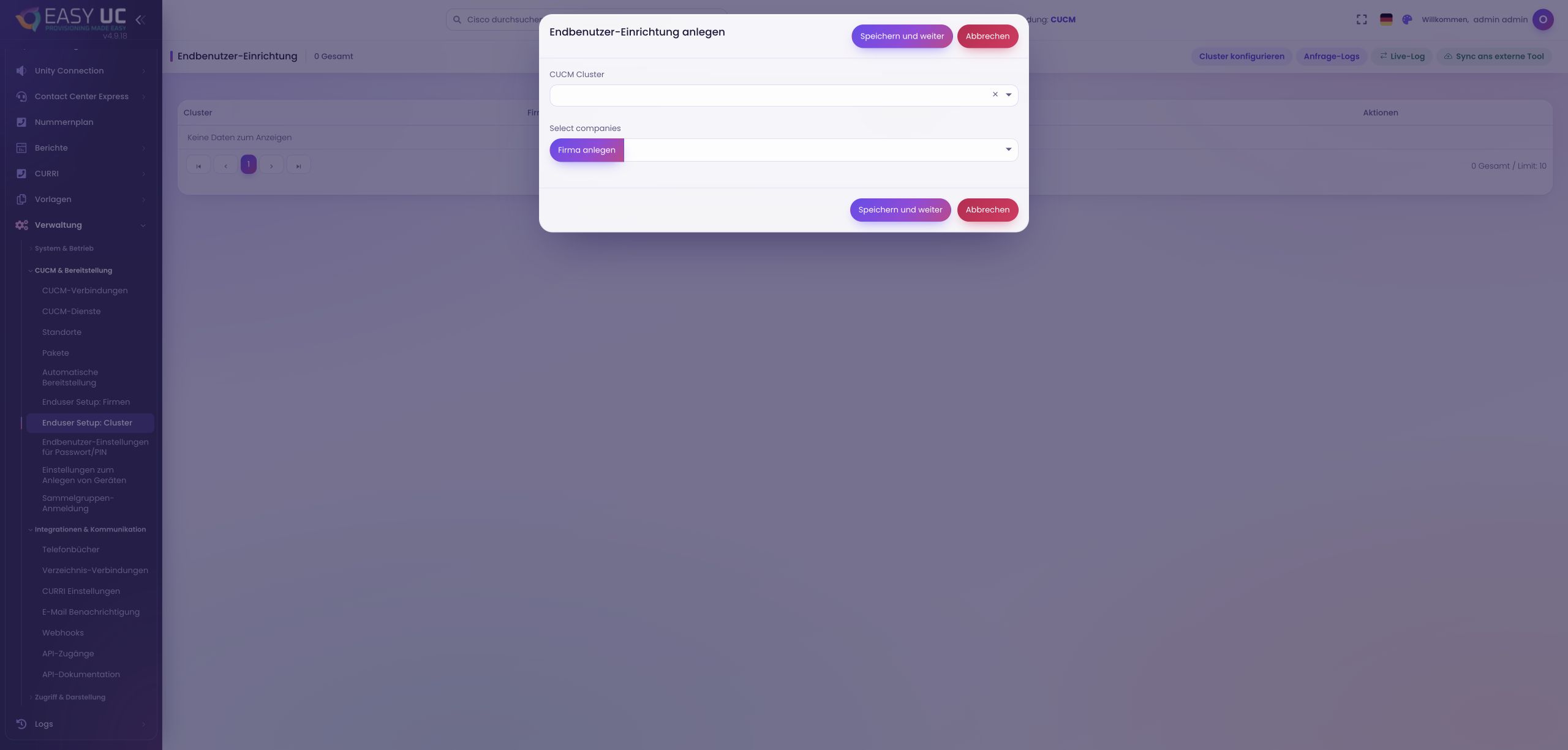
Where to work: Administration → CUCM & Provisioning → Enduser Setup
Define which company code and API location map to which cluster and EasyUC location. This mapping translates business information in the ticket into the correct voice configuration. The service desk therefore does not need to reproduce CUCM device pools or individual button templates in the ticket.
Also check that the requested user ID already exists in CUCM and that the requested services are configured at the location. For example, request Windows/Mac Jabber and iPhone while leaving device profile and voicemail disabled. The request describes the need; EasyUC resolves it against the configured defaults.
Submit the task from the ticket
Where to work: Service-desk workflow → POST /public-api/enduser_tasks
After business approval, the service desk sends a task with requestId, company, location, enduser and options. Use a unique request identifier such as the ServiceNow RITM number. The same identifier appears in the callback and connects technical processing with the original request.
Store the task ID returned by EasyUC on the ticket as well. A successful creation response initially means the task has been accepted. Move the ticket to an in-progress state; only the completed result confirms actual provisioning. The expandable example shows a request structure.
Open technical example
Illustrative example data. Adapt the user, location, company code and callback destination to your environment.
POST /public-api/enduser_tasks
Content-Type: application/json
Authorization: Bearer <JWT>

{
  "requestId": "RITM0001001",
  "company": {
    "code": "example-eu"
  },
  "location": "DE-BER-01",
  "enduser": "anna.schmidt",
  "options": {
    "locale": "de_DE",
    "softPhones": {
      "iphone": true,
      "android": false,
      "tablet": false,
      "windows": true
    },
    "deviceProfile": false,
    "voicemail": false
  }
}Follow task processing
Where to work: Enduser Setup → Live-Log / GET /public-api/enduser_tasks/{id}
EasyUC processes the task asynchronously. Status values distinguish waiting (1), in progress (2), successful (3) and error (4). The service desk can query the task using its returned ID, without holding a web request open throughout device provisioning.
The Enduser Setup live log supports troubleshooting across the journey: incoming request, processing steps and outgoing response. Match requestId and taskId when investigating. A business error such as a missing location mapping needs a different correction from an unreachable callback endpoint.
Return the result to ServiceNow
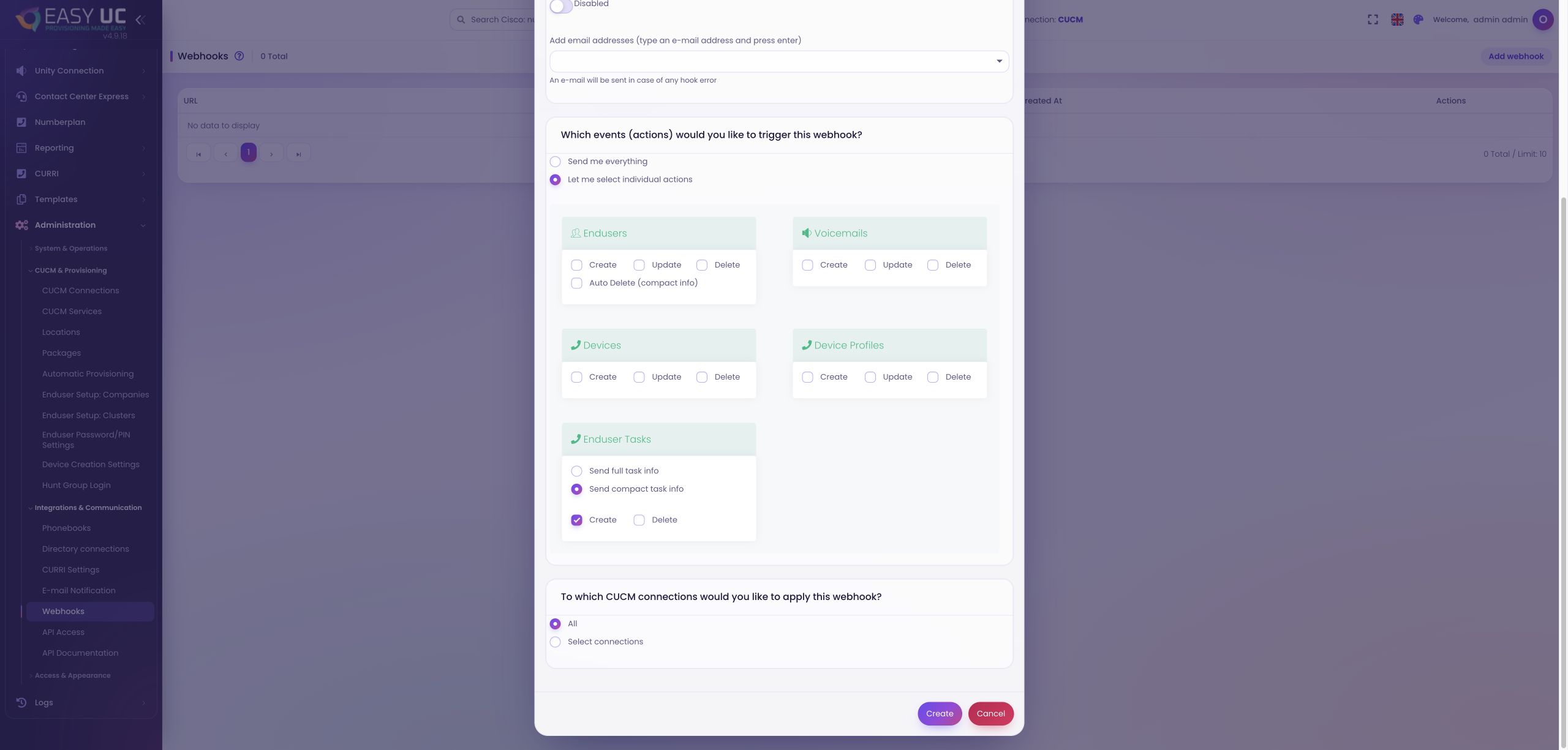
Where to work: Administration → Integrations & Communication → Webhooks
Configure an Enduser Task webhook using the compact format and your integration’s receiver. Match the destination and authentication settings. The callback includes requestId, taskId, status, phone number, selected configuration options and errors, allowing it to be matched to the correct request.
The ServiceNow integration evaluates the result and adds the allocated number and services to the ticket. Mark it complete only for status 3; for status 4, route the reported errors for attention. Design duplicate-callback handling to update the same ticket rather than trigger another order.
Reconcile inventory and requests
Where to work: Enduser Setup → external-tool synchronization
Alongside task callbacks, EasyUC can send the user directory or existing CUCM configurations to an external destination. Directory synchronization identifies existing users. Full configuration synchronization adds clusters, locations, numbers and supported device assignments, distinguishing a known user from one already provisioned for voice.
First test requests, processing and callbacks with a few approved test users. Before sending inventory, inspect its scope using “Dry run (build inventory only)”: synchronization covers every CUCM cluster configured in Enduser Setup. It does not collect voicemail inventory; that information comes from task callbacks. Define responsibility for errors and business approval in the service desk.
The result
The request remains traceable in the service desk while EasyUC provisions voice services using centrally maintained defaults. Request ID, task status and callback connect both systems, so the ticket can show the actual allocated number and outcome.
Good to know
- An accepted task is not completed provisioning. Check the final status and error list before closing a ticket.
- The ServiceNow integration is implemented to suit your workflow. EasyUC supplies the API and webhooks; this example does not claim a certified ServiceNow app or integration-free setup.
- Enduser tasks provision existing CUCM users. The deletion endpoint removes selected voice resources and must not be equated with deleting a directory account.
Captures come from the EasyUC lab and demo environment. Captions identify setup and simulation states. If the interface is not yet available in your language, its original language is labelled. Available features depend on the version, permissions and configured connections.